A trading bot in MetaTrader 5 (MT5) is called an Expert Advisor, or EA. It is a small program that watches the chart and places trades for you, following fixed rules. This guide takes you from a blank PC to a bot running on a chart, one step at a time. Start on a demo account: a bot can lose money just as fast as a person can, and often faster.
What you need
- A computer. MT5 is built for Windows. On a Mac or Linux, MetaQuotes (the company behind MT5) has an official installer that runs it for you, so you do not need to set anything up by hand.
- An account with a broker that offers MT5. Open a demo account first. It is free and uses pretend money.
- A bot. This is a file ending in
.ex5. You can buy or download one, or write your own. - Time to test. Plan on a few weeks on demo before you put real money on it.
Step 1: Open an account with an MT5 broker
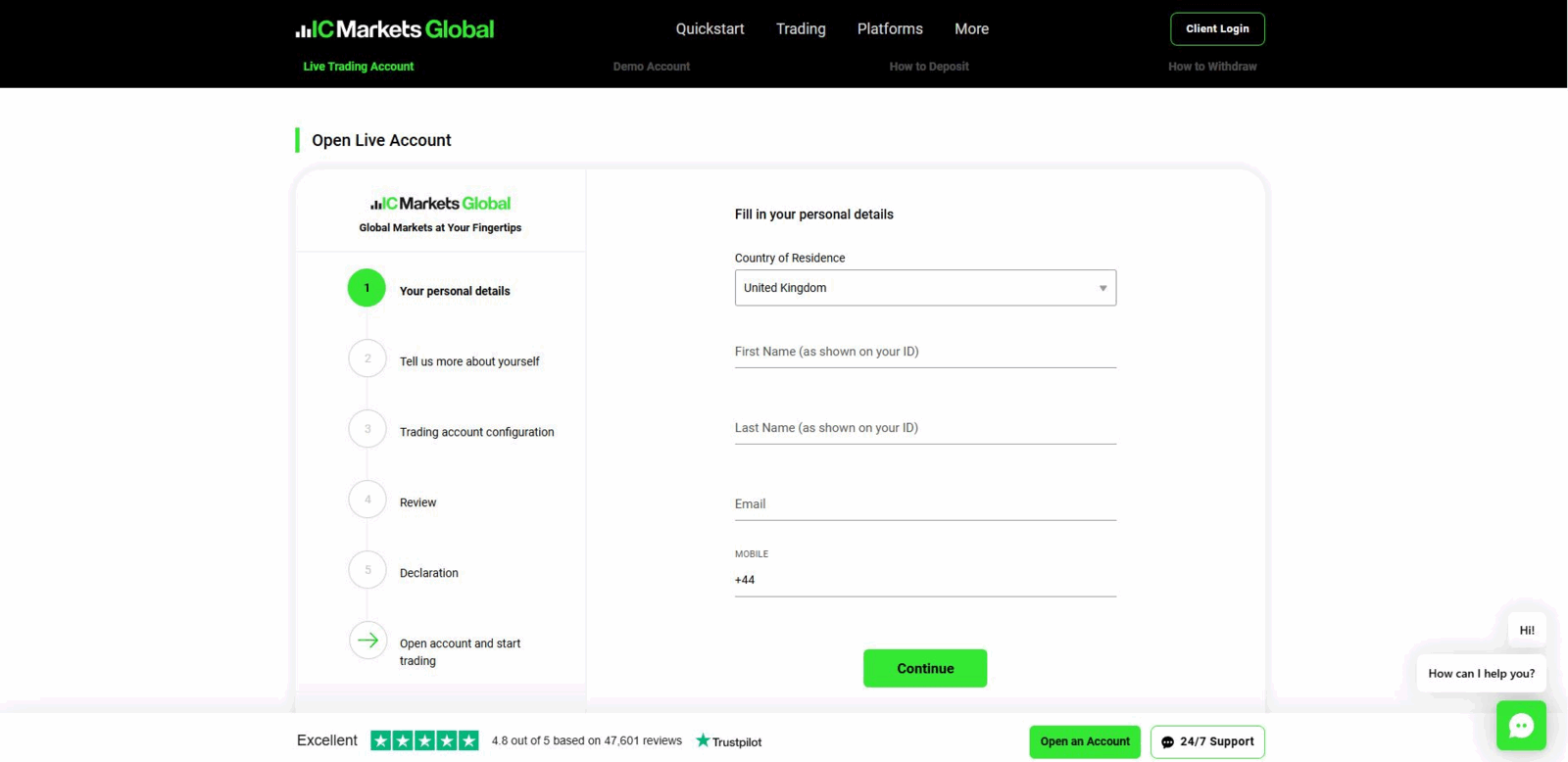
Any broker that offers MT5 will do. We use IC Markets for our own bots (affiliate link), mainly for its low costs and fast order filling. Whichever broker you pick:
- Choose MetaTrader 5 as the platform when you open the account. An MT4 account will not work with MT5 bots.
- Start with a demo account. You can add a live account later from the same client area.
- Keep the email the broker sends you. It has three things you need: your login number, your password and the server name.
Step 2: Download and install MT5
- Download MT5 from your broker's client area. This copy already knows your broker's servers, which makes logging in easier. You can also get it from metatrader5.com.
- Run the installer and follow the prompts.
- On a Mac, use the official macOS installer from metatrader5.com. On Linux, MetaQuotes gives you a one-line install script.
Step 3: Log in to your account
- Open MT5 and go to File > Login to Trade Account.
- Enter your login number and password.
- Pick the server exactly as written in your broker's email. Demo and live accounts use different servers.
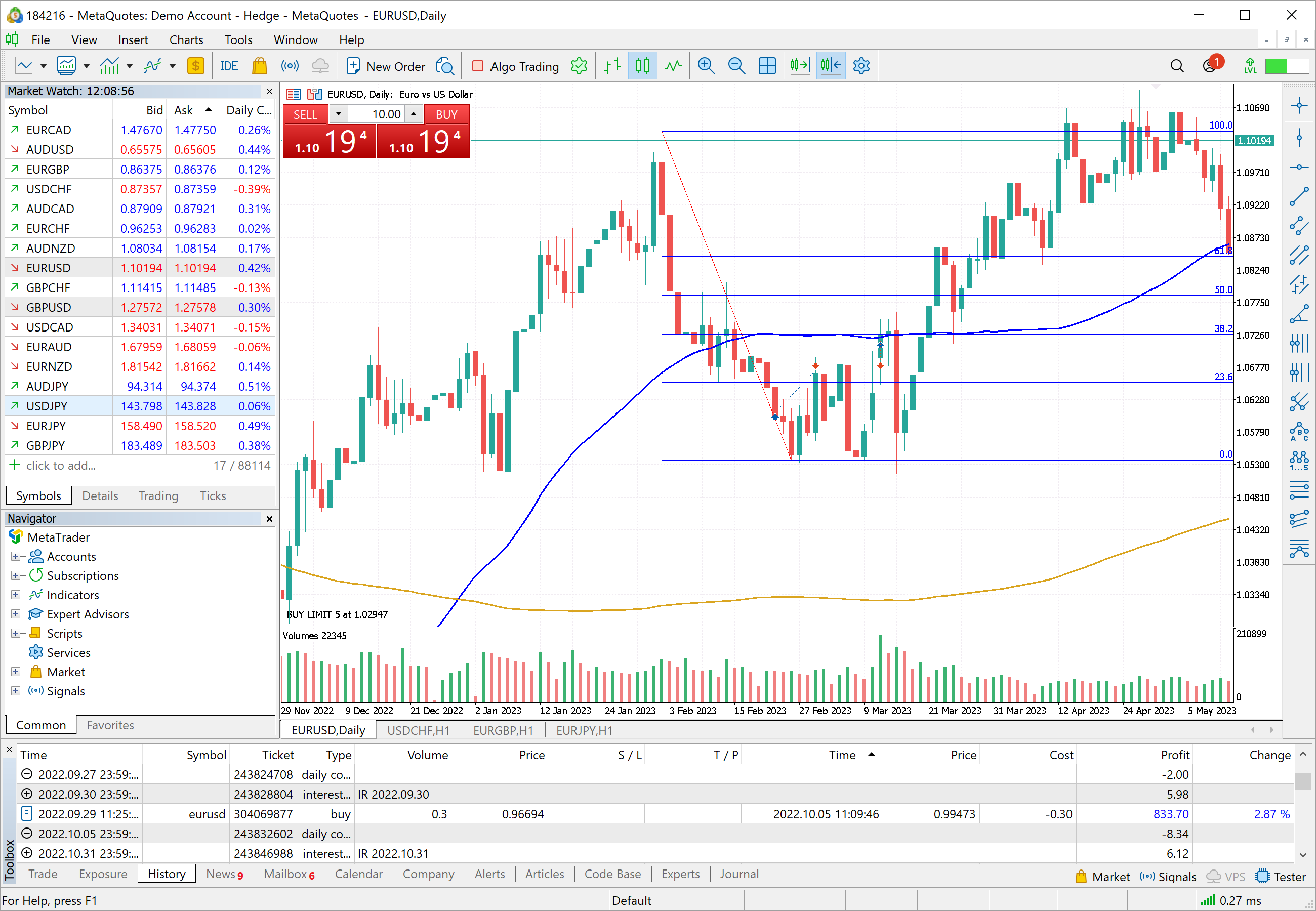
- Click OK. Prices start moving in the Market Watch window when you are connected.
If MT5 says your account is invalid, the server is the usual cause, not the password. Check the server name against your email.
Step 4: Get a bot
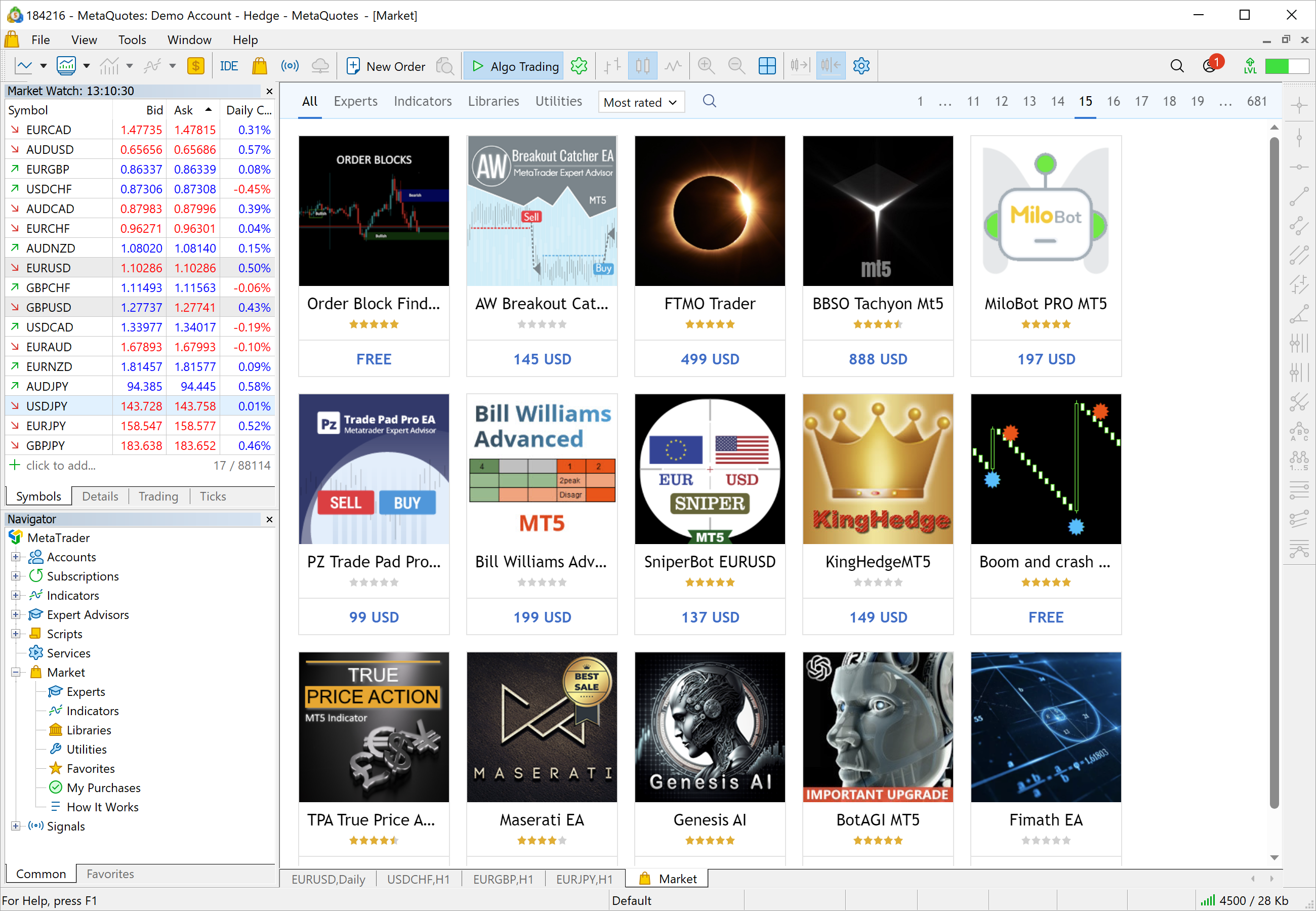
- The MT5 Market. Open it from the Navigator (the Market entry) or from the Toolbox at the bottom of the screen. Many bots have a free demo version you can test before you pay.
- A file from someone else. Only take bots from sources you trust. A bot is a program running on your account.
- Your own bot. MT5 comes with MetaEditor, where you can write bots in the MQL5 language.
Be very wary of any bot that promises big or "guaranteed" returns. If the seller will not let you test it, walk away.
Step 5: Install the bot
Bots from the Market install themselves. For a file:
- Go to File > Open Data Folder.
- Open MQL5, then Experts.
- Copy your
.ex5file into that folder. - Back in MT5, right-click Expert Advisors in the Navigator (Ctrl+N) and click Refresh. The bot appears in the list.
More detail, including .mq5 files and settings files, is in our guide to installing an Expert Advisor in MT5.
Step 6: Attach the bot to a chart
- Open a chart of the market the bot is made for, for example EURUSD, and set the timeframe it needs (the bot's notes should say).
- Drag the bot from the Navigator onto the chart.
- On the Common tab, tick Allow Algo Trading.
- On the Inputs tab, set the trade size and any other settings. Use the smallest size to start.
- Click OK.
The bot's name and a small icon now show in the top-right corner of the chart. That tells you it is loaded.
Step 7: Switch on Algo Trading
- Click the Algo Trading button in the toolbar. It turns green when it is on. (Older guides call this button "AutoTrading". It is the same thing.)
- Check Tools > Options > Expert Advisors and make sure Allow algorithmic trading is ticked.
- Only tick "Allow DLL imports" or add web addresses if the bot's maker tells you to, and only if you trust them.
- Open the Experts tab in the Toolbox (Ctrl+T). The bot writes its messages there. Red errors mean something is wrong.
A bot only trades when both switches are on: the Algo Trading button, and Allow Algo Trading in the bot's own settings.
Step 8: Test before you trust it
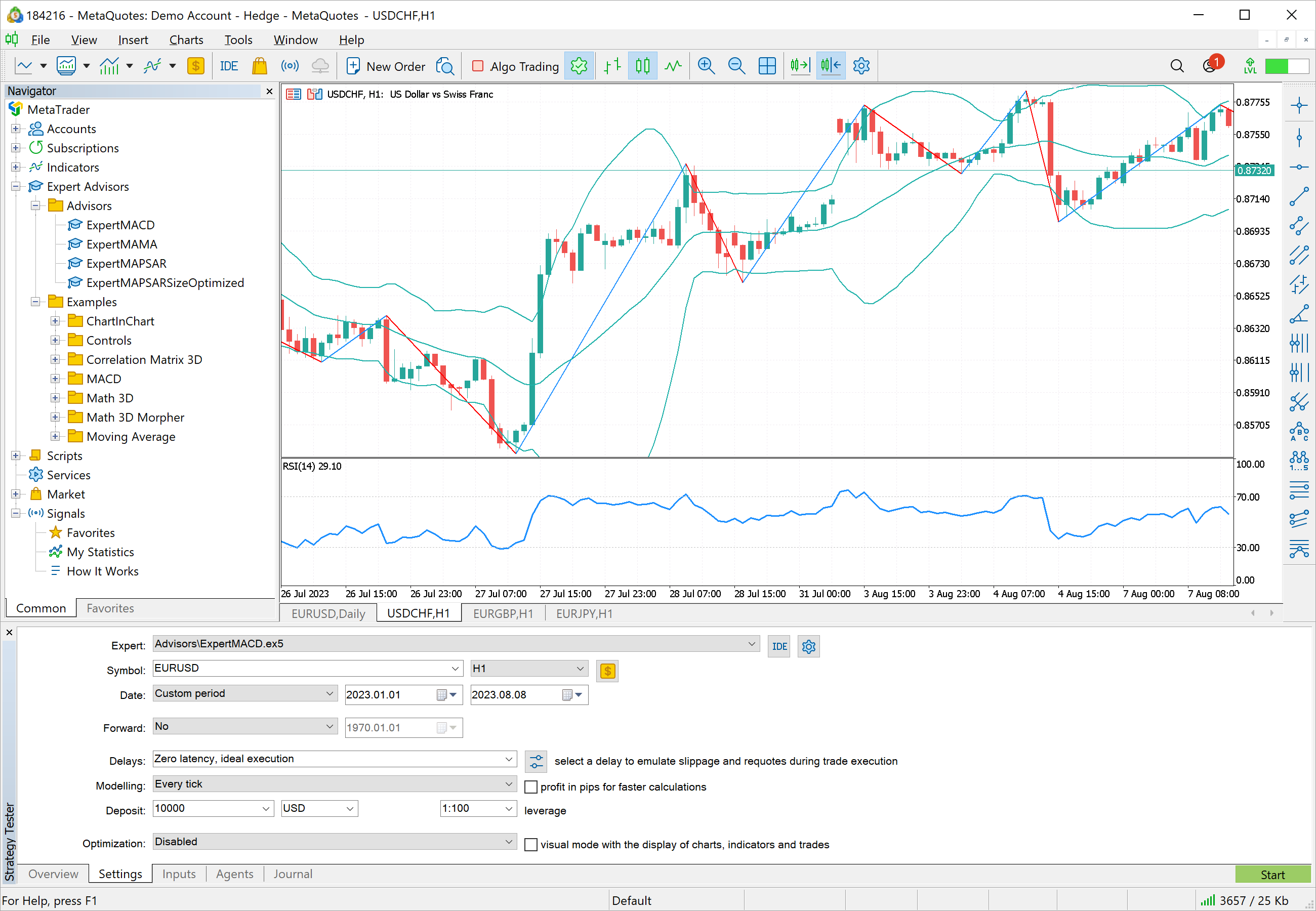
- Backtest it. Open the Strategy Tester (Ctrl+R), pick the bot, the market and a date range, and run it on past prices. Choose Every tick based on real ticks for the most realistic result. Our MT5 Strategy Tester guide shows you how to read the results.
- Run it on demo. Leave it on a demo account for two to four weeks. Live prices, spreads and delays are never quite the same as a backtest.
- Compare. If the demo results are far worse than the backtest, find out why before going any further.
Step 9: Go live, small
- Log in to your live account (Step 3, with the live server).
- Attach the bot again and switch on Algo Trading (Steps 6 and 7).
- Use the smallest trade size the broker allows, for example 0.01 lots.
- Check it every day for the first few weeks. Compare its trades with the demo.
Step 10: Keep it running 24/7
A bot only works while MT5 is open and online. If your PC sleeps, restarts for an update or loses its internet, the bot stops. To keep it running, use a VPS: a computer in a data centre that stays on all the time. Your choices:
- MT5's own VPS, rented from inside MT5, from about $15 a month.
- A free VPS from your broker. IC Markets gives one to clients who trade enough each month (15 standard lots at the time of writing; check their site for the current terms).
- Your own Windows VPS, which you log in to with Remote Desktop.
Our MT5 VPS guide walks through each one.
When the bot does not trade
- Algo Trading is off, or Allow Algo Trading is not ticked in the bot's settings.
- The market is closed, for example at the weekend.
- Wrong market name. Some brokers add an ending, such as EURUSD.a. The bot may need that exact name.
- Trade size too small or too big for the account or the broker's limits. The Experts tab will say so.
- You changed account. MT5 can switch Algo Trading off when you swap accounts. Switch it back on.
Staying safe
- Never trade money you cannot afford to lose.
- Make sure every trade the bot opens has a stop loss.
- Past results, even good ones, do not mean future profits.
- Check on the bot regularly. Do not set it and forget it.
Related guides
- How to install and attach an Expert Advisor in MT5
- How to backtest a bot in the MT5 Strategy Tester
- How to run an MT5 bot 24/7 on a VPS
- Backtest checker: is your result worth trusting?
- IC Markets review
- Pepperstone review
Risk warning: CFDs are complex instruments and come with a high risk of losing money quickly because of leverage. Most retail investor accounts lose money when trading CFDs. Think about whether you understand how CFDs work and whether you can afford the high risk of losing your money.
This guide is for education only and is not financial advice. Trading carries risk; you can lose more than you expect.