An Expert Advisor (EA) is a trading bot for MetaTrader 5 (MT5). Getting one onto a chart takes a few minutes, but there are a few traps: the wrong file type, a missing tick box, or a setting that switches the bot off without telling you. This guide covers each step and how to check the bot is really running.
Know your file
.ex5is a ready-to-run MT5 bot. This is the one you normally get..mq5is the bot's source code. MT5 has to turn it into an.ex5first (see below)..ex4or.mq4files are for MT4. They will not run in MT5. Ask the seller for an MT5 version..setfiles are saved settings for a bot, not the bot itself.
Way 1: Get it from the MT5 Market
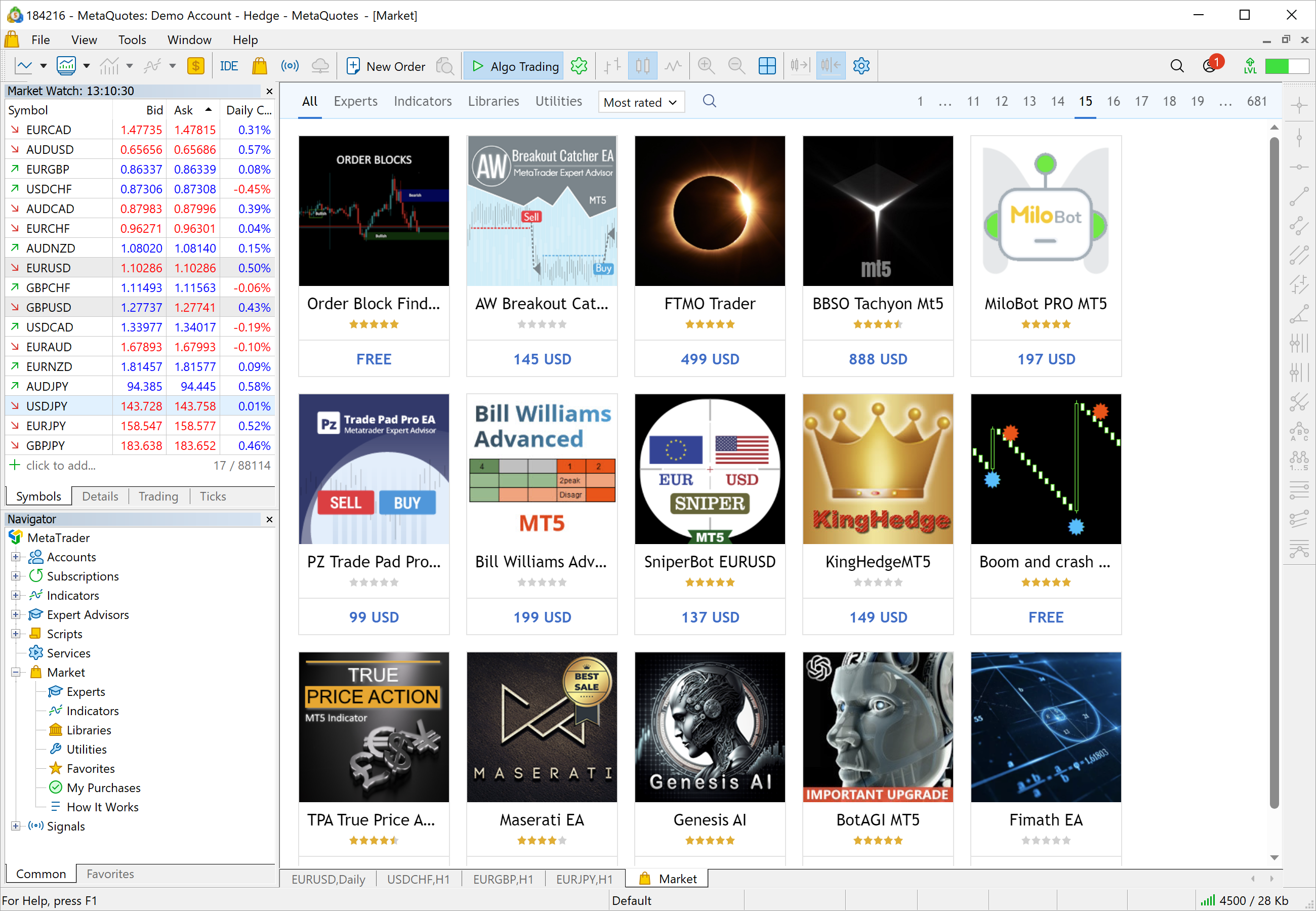
- In MT5, open Market from the Navigator, or the Market tab in the Toolbox at the bottom.
- Sign in with a free MQL5.com account when asked.
- Pick a bot and click Download (free or demo) or Buy.
- It installs itself and shows in the Navigator under Expert Advisors > Market.
Demo versions of paid bots only run in the Strategy Tester, not on a live chart. That is still the best way to try before you buy.
Way 2: Install a bot file
- In MT5, go to File > Open Data Folder. A folder window opens.
- Open MQL5, then Experts.
- Copy the
.ex5file into Experts. You can make a sub-folder to keep things tidy. - If the bot came with its own indicators, copy those into MQL5 > Indicators.
- Back in MT5, open the Navigator (Ctrl+N), right-click Expert Advisors and click Refresh. Or just restart MT5.
Copy the file into the folder MT5 opens for you. Your PC may have more than one copy of MT5, each with its own data folder.
If you only have an .mq5 file
- Copy it into MQL5 > Experts as above.
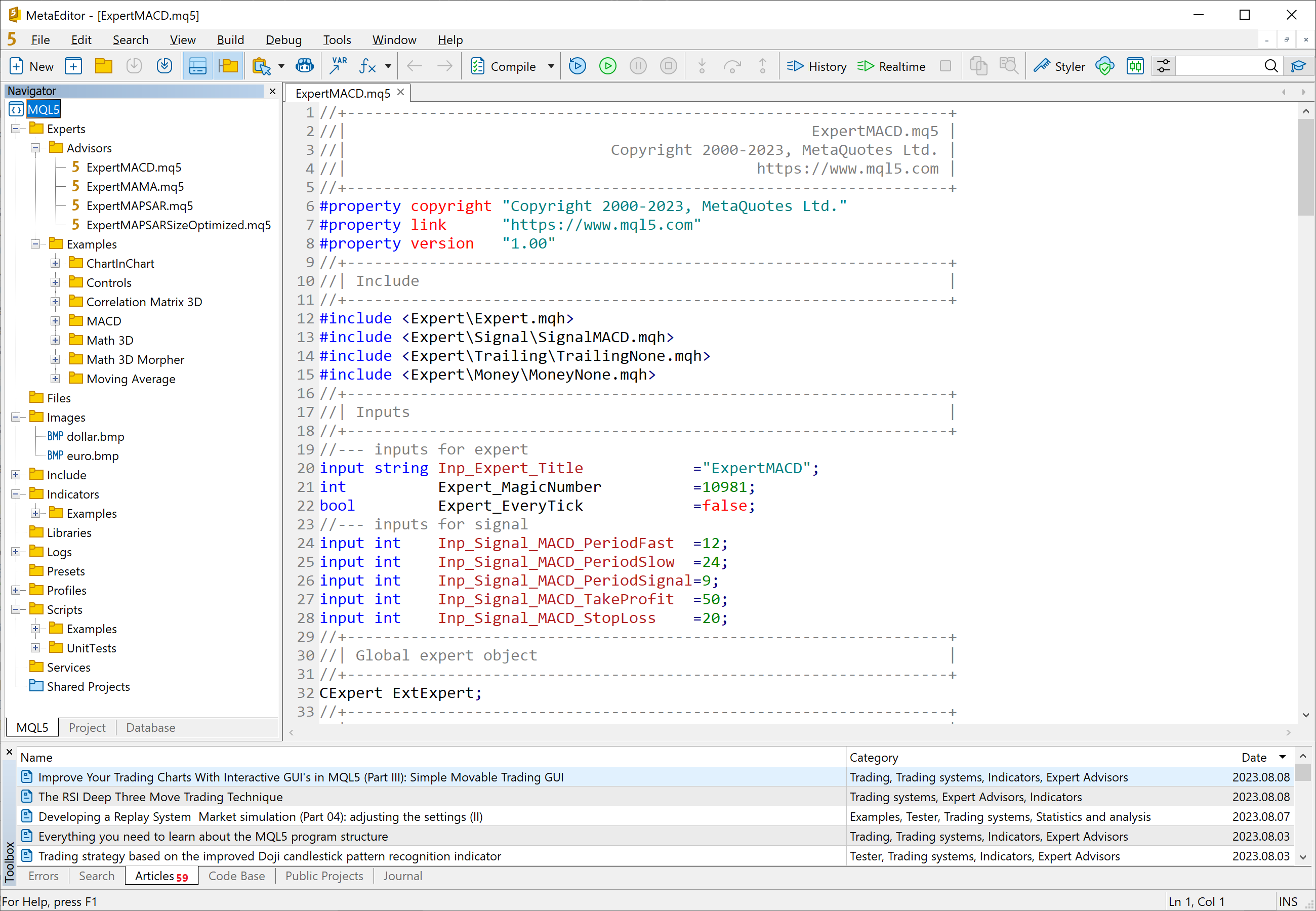
- Double-click it in the Navigator. It opens in MetaEditor.
- Press F7 (Compile). If the bottom panel shows 0 errors, an
.ex5has been made. - Go back to MT5 and refresh the Navigator.
Attach the bot to a chart
- Open a chart of the market the bot is built for, using File > New Chart or by dragging a market from Market Watch.
- Set the timeframe the bot needs, for example H1. The bot's notes should tell you.
- Drag the bot from the Navigator onto the chart. The settings window opens.
Common tab
- Tick Allow Algo Trading. Without it the bot can watch but not trade.
Inputs tab
- This is where the bot's own settings live: trade size or risk %, stop loss, take profit, trading hours and so on.
- Start with the smallest trade size.
- If the bot came with a
.setfile, click Load and pick it. - If you run the same bot on more than one chart, give each a different magic number if it has one. That is how the bot tells its own trades apart.
Click OK. The bot's name and a small icon appear in the top-right corner of the chart.
Switch on Algo Trading
- Click Algo Trading in the toolbar. It turns green when on.
- Check Tools > Options > Expert Advisors: Allow algorithmic trading should be ticked.
- In the same window, MT5 can switch Algo Trading off by itself when you change account, profile, or a chart's market or timeframe. If your bot keeps stopping after you change any of these, that is why. Switch the button back on, or untick those options.
- Leave Allow DLL imports and WebRequest off unless the bot's maker asks for them and you trust them.
Check it is really running
- Chart corner: the bot's name and icon are showing.
- Experts tab (Toolbox, Ctrl+T): the bot writes messages here. Look for red errors.
- Journal tab: MT5's own messages, such as the bot loading or being removed.
- Trade tab: any trades the bot opens appear here.
A bot often waits hours or days for its setup. No trades does not always mean it is broken. If the Experts tab is quiet and there are no errors, it is usually just waiting.
Remove or change a bot
- Change settings: right-click the chart, choose Expert Advisors > Properties.
- Remove it: right-click the chart, choose Expert Advisors > Remove. Open trades stay open. Close them yourself if you want them shut.
- See all running bots: right-click a chart, choose Expert Advisors > Expert List.
Common mistakes
- Putting the file in the wrong data folder, or in Indicators instead of Experts.
- Trying to run an MT4
.ex4file in MT5. - Forgetting one of the two switches: the toolbar button and the bot's own Allow Algo Trading box.
- Using the wrong market name. Some brokers add an ending, such as EURUSD.a.
- Running two copies of the same bot on the same market with the same magic number.
Need an MT5 account to try this on? We run our own bots with IC Markets (affiliate link). Open a free demo account first and practise there.
Related guides
- How to set up a trading bot on MT5 (start here)
- How to backtest a bot in the MT5 Strategy Tester
- How to run an MT5 bot 24/7 on a VPS
- Backtest checker
Risk warning: CFDs are complex instruments and come with a high risk of losing money quickly because of leverage. Most retail investor accounts lose money when trading CFDs. Think about whether you understand how CFDs work and whether you can afford the high risk of losing your money.
This guide is for education only and is not financial advice. Trading carries risk; you can lose more than you expect.